%20(1).png?width=400&height=124&name=21051_HotelIQ_logo_BJ_PB_DM_GR-05%20(1)%20(1).png)
How to enter Forecast/Budget data on a daily, minor market segment level
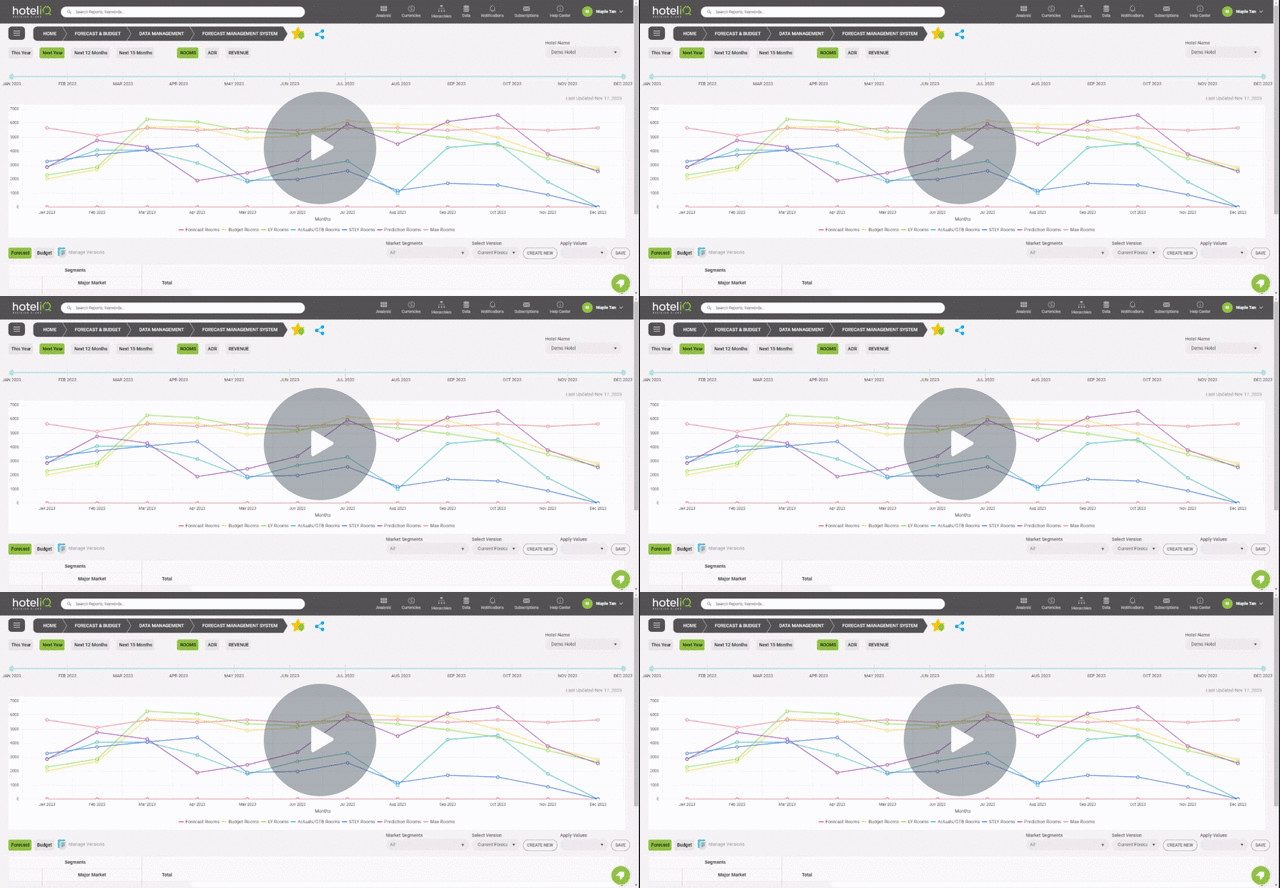
Forecast Management System Guide - Watch Video
Instruction
Open Forecast Management System in the Forecast and Budget App
Select the year (This Year, Next Year etc) and the months by adjusting the time slicer

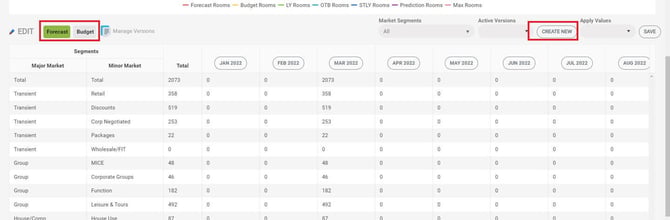
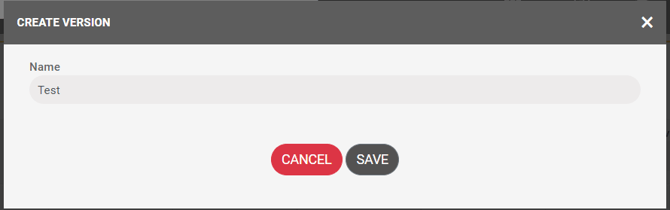
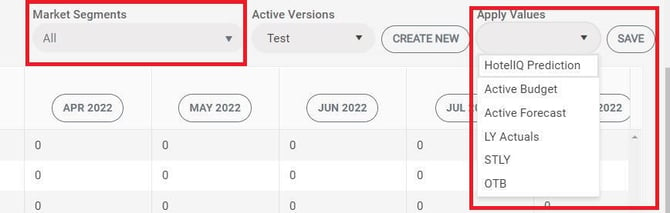
Apply Values (e.g. HotelIQ Prediction, LY Actuals, STLY etc) to All or selected market segments > ‘Save’
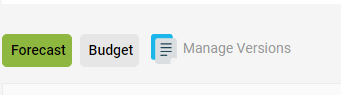
Click on Manage Versions > Manage Active and Previously Saved Forecasts.
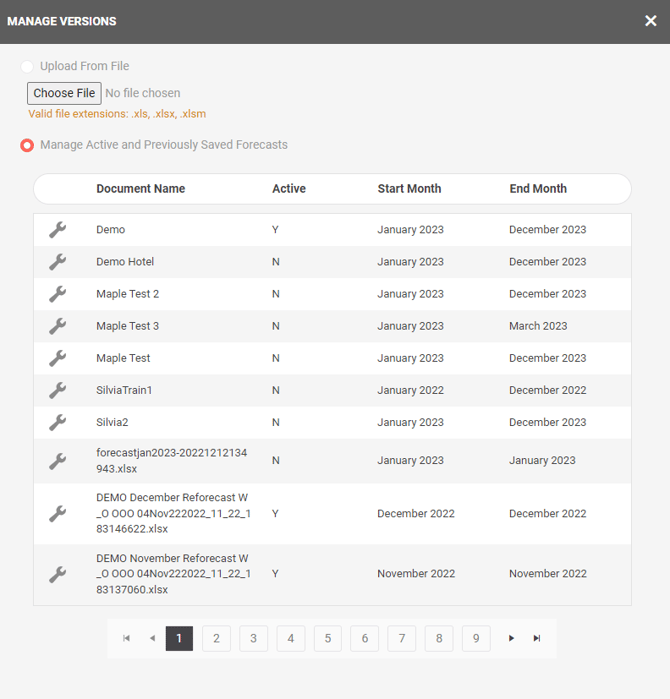
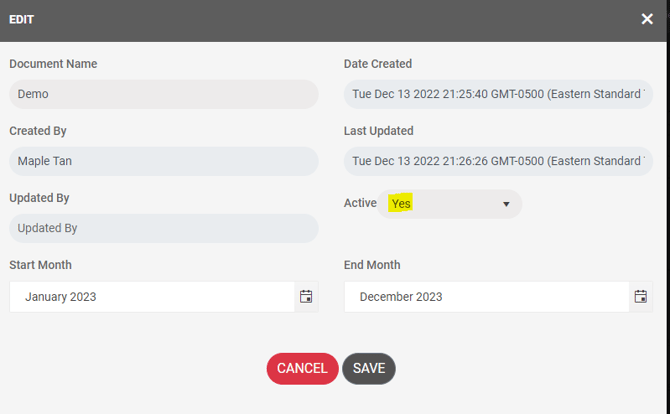
Locate the file created > Edit icon > Set the file as Active
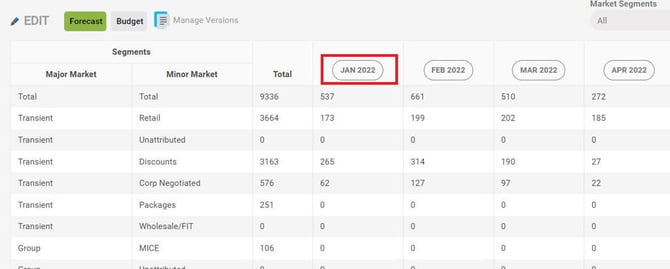
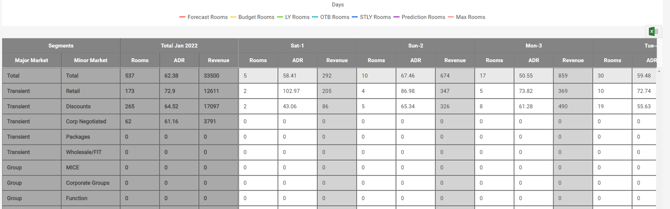
Click into individual months to edit data by day by market segment. Enter Rooms and ADR figures, Revenue will be automatically calculated. To use our Excel Export feature, read here
Click on the floppy disc icon to save changes
.webp?width=415&height=185&name=image%20(1).webp)
Continue entering Forecast/Budget data into each month until completed
Forecast/Budget Versions can be managed through the Manage Versions screen. Set Versions as Active or Inactive. Active versions will be published in the Forecast and Budget Performance report and Dashboard.
.webp?width=670&height=397&name=image%20(2).webp)
